The post My Favorite Design Tools Right Now appeared first on Web Design of Hawaii.
]]>Creative Market
Creative Market is the best place to find a wide range of design tools and goods. They have everything: logos, stock images, fonts, graphics, templates, web themes, brushes, photoshop tools and so much more. Everything is reasonably priced and they even give away free goods every Monday! I am constantly looking to Creative Market for new fonts, web elements, and even inspiration.
Stocksy
Stock photography can be great for your website but they can also be super cheesy. Stocksy.com is a great site to find unique stock images that you won’t find anywhere else. Stocksy features a carefully curated selection of royalty-free stock images that are creative, high quality, inexpensive, and beautiful. Their talented community of photographers bring you the best images on the market. Stocksy is one of my absolute favorite stock photo sites and one of my most used browser bookmarks.
Basecamp 3
Basecamp helps me keep myself organized and up to date on what my team is working on. It is a great tool to delegate tasks, communicate with my team, keep my appointments organized, stay on top of my to-do list, run reports on my employees and our overall efficiency, set deadlines, share files, and even communicate with my clients. All of that in one easy to use location! They also have an awesome mobile app that will notify my when the team finishes tasks and remind me about upcoming meetings. The notifications even show up on my apple watch so I am always up to date on what’s happening whether I am in or out of the office. Basecamp is an essential tool for staying organized when you have a lot ongoing projects. I can’t live without it!
Adobe Color CC
Adobe Color is a simple but useful design tool to generate color schemes for your website or marketing materials. You can easily capture cohesive color combinations with your mobile device or find inspiration from their online explore section. If you have one color you know you like but want to expand your palette, you can use the create feature to mix and match colors and find schemes by analogous, monochromatic, triad, complementary, compound, shades, or create your own custom color scheme.
Themeforest
Themeforest is my go to marketplace for finding dynamic WordPress themes. With over 21,000 website templates, I know I can always find the perfect theme to customize for my client. When I am working on a client site I almost always have a themeforest theme demo up on another monitor to use as inspiration so I know I am building the best possible website for my client and utilizing all of the best elements available. Themeforest has everything you need to get started building a beautiful website from corporate to creative and everything in between.
The post My Favorite Design Tools Right Now appeared first on Web Design of Hawaii.
]]>The post Taking Great Photos for Your Website appeared first on Web Design of Hawaii.
]]>
The Rule of Thirds
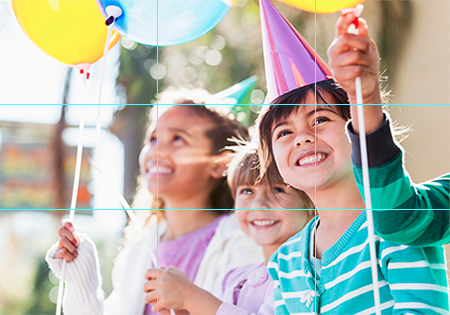 The rule of thirds is an easy tip to remember and can make a big difference in your photo composition. Divide the shot into three imaginary columns both horizontally and vertically. You want your subject to sit within the axis points of those lines (Your iPhone and most cameras include a grid feature to help you line things up). Doing so will make your photo more visually interesting and will give your designer more to work with. I like to place text over photos and need some space to put things like call to actions or logos. Avoid putting the subject in the middle of the shot when possible.
Plan Ahead
When building websites, web designers use photos in a lot of different ways. There are wide home page sliders, blurry backgrounds, portfolios, page headers, online stores, and general pages that all require very different photos. Think about what you will be using the photos for ahead of time to save the headache of realizing you didn’t get the right shot. Take a wide variety of photos. I will leave a list below of the ideal type of photo for different sections of a website.
Home page sliders need very wide photos that aren’t tall at all. Slider photos are roughly 1900×500 pixels give or take a bit so they are often three times as wide as they are tall! One problem we run into is when the subject of a photo is too tall to fit leaving much of the subject cut off or too zoomed in. It is good to keep slider photo backgrounds fairly simple as well so any text that is laid over the photo is easy to read.
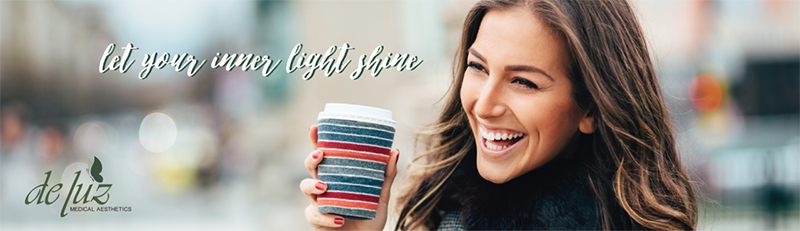
Backgrounds are often used to break up sections of a web page and can help make your site more visually appealing. They key to using photo backgrounds is to keep things very simple. They can either make a site look really amazing or really busy. We like to use blurred out images as backgrounds or simple textures or patterns.
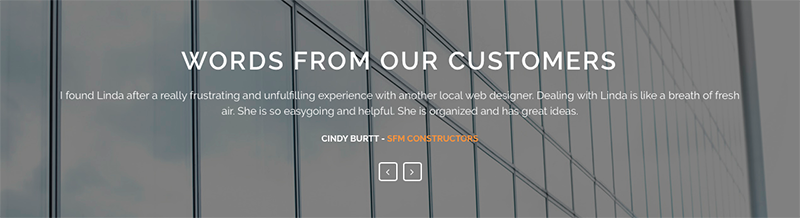
Photos used on general information pages can bring some interest to a paragraph of simple text. Don’t worry about these too much; as long as the quality is good the photos should be fine. One thing I like to tell my clients is that landscape photos are better than portrait layouts. Our screens are wide and often times the content we write isn’t that lengthy. Because of those factors, portrait photos are usually very tall in comparison to the content it sits next to. Just something to keep in mind.
Use a Decent Camera
In order to take good photos you do not need to go and buy the most expensive camera on the market. For my blog I take a lot of photos with my phone and they turn out great! For a business though I would suggest using a decent camera that takes good quality photos. Things like sliders use very large photos and using a better camera may help you capture the best picture possible for that space. Different cameras are also good for different scenarios and can fix problems like lighting issues and can be more forgiving to a shaky hand than your iPhone. In my experience better quality photos always make for a better quality website.
Good Lighting is Important
 Photoshop can do a lot to help underexposed photos but taking the time to make sure the lighting is good will not only make your photos come out better but your website will look better as well. Against a white background, dark photos look dull and unprofessional. Go outside or near a window for the best lighting and try to find a spot with an even distribution of light. The top three lighting issues I see are overexposed photos, underexposed photos, and the worst – a mix of both. Photos with harsh shadows are hard to correct and often go unused.
Keep a Steady Hand
I receive a sets of photos from clients all the time that seem great only to find out that they are ever so slightly blurry. They take quick photos of their products or projects on their phones that look decent on a small screen but awful on my large desktop monitor. Sometimes we can make them work but blurry photos are never ideal. If you want to be sure you are taking a steady shot use a tripod or rest your arm on a steady surface to avoid shaking. Take your time and relax when taking photos for the best results.
I hope you found these tips on taking great photos for your website to be helpful! Have any other questions regarding this blog post or your website? Give us a call at (800) 991-4381 or contact us and we will be sure to help you out. Mahalo for reading!
The post Taking Great Photos for Your Website appeared first on Web Design of Hawaii.
]]>The post How to Login to WordPress appeared first on Web Design of Hawaii.
]]>-
Access The Login Screen
If you use Internet Explorer or Safari go to www.mywebsite.com/wp-admin
If you prefer Firefox or Chrome go to www.mywebsite.com/wp-login.php
-
Enter Your Username and Password
Don’t know your login information? Ask your web developer or reset your password. WordPress will send you a new password via email.
-
Click the Login Button
This will bring you to the WordPress dashboard. That’s it! Easy as 1 2 3.
The post How to Login to WordPress appeared first on Web Design of Hawaii.
]]>